

Key Takeaways
Smartphones vs. Tablets: Understanding the Difference
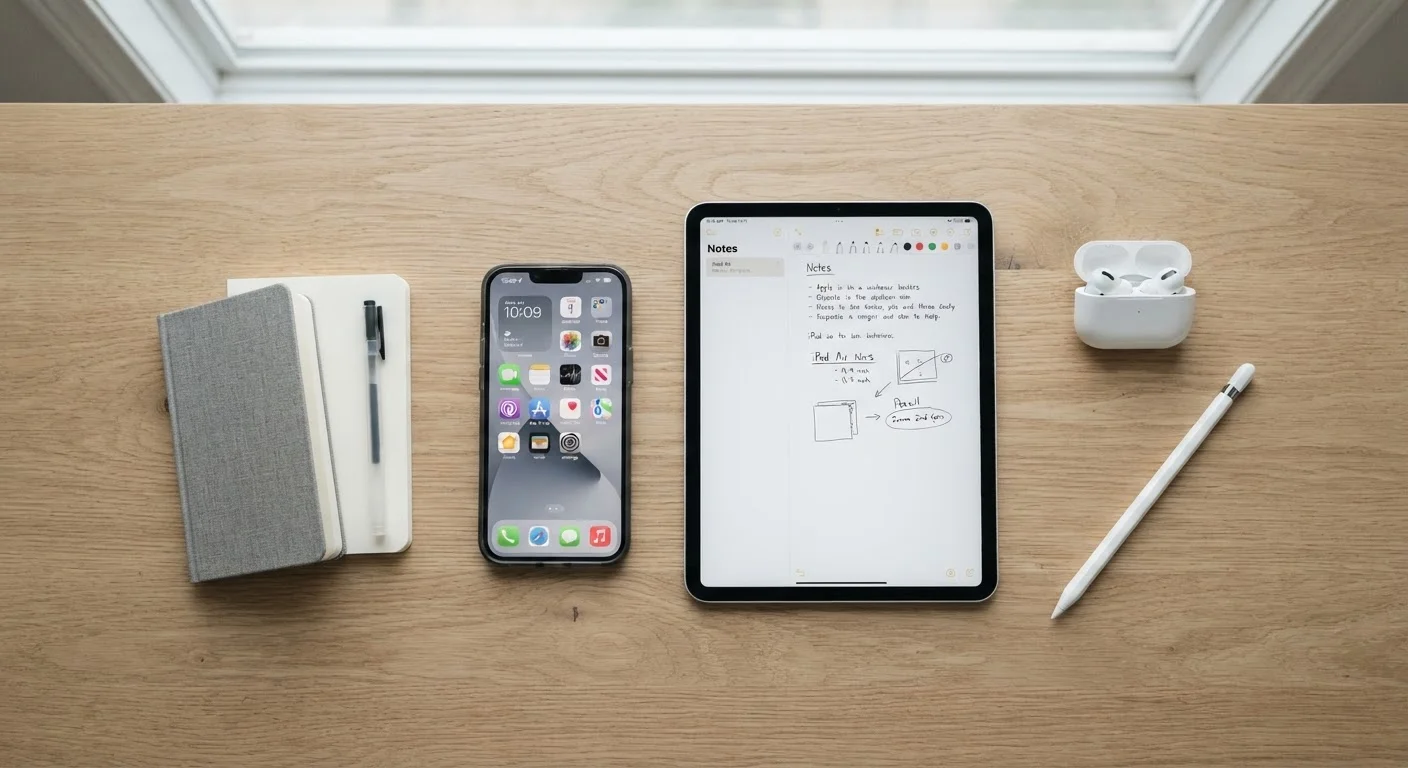
Smartphones and tablets share the same core technology - touchscreens, apps, wireless connectivity - but they serve meaningfully different roles. A smartphone fits in your pocket, handles calls and texts, and goes everywhere with you. A tablet offers a larger screen better suited to reading, video, creative work, or tasks that benefit from more visual real estate.
The line between them has blurred as phones have grown larger and some tablets now support cellular service and stylus input. If you're trying to decide which fits your life, consider your primary use: frequent commuting and communication points toward a phone; home-based media consumption or document work often suits a tablet. Some households find one of each makes sense - they complement rather than replace each other.
For a comparison with a different category entirely, see our guide to personal computers for first-time owners if you're also weighing a laptop or desktop.
How to Choose the Right Device for Your Needs
Picking a device doesn't have to mean researching processor benchmarks. Focus on a handful of practical factors:
- Operating system: The two dominant mobile platforms are iOS (Apple) and Android (used by many manufacturers). Both are mature and capable. iOS tends to offer a more consistent experience across Apple's own hardware; Android offers more variety in screen sizes, price points, and customization.
- Screen size: Phones typically range from around 6 to 7 inches. Tablets range from roughly 8 to 13 inches. Larger isn't always better - it depends on how and where you use the device.
- Battery life: Look for devices with real-world battery ratings that match your day. A device that needs midday charging is a practical inconvenience, not just a spec issue.
- Storage: Photos, apps, and offline media consume storage quickly. If the device doesn't support expandable storage (via a memory card), choose a higher built-in capacity than you think you'll need.
- Cellular vs. Wi-Fi only: Tablets are often sold in Wi-Fi-only versions, which cost less but require a hotspot or home network to connect away from home.
When comparing storage options, always choose at least one tier higher than your current usage - photos and app updates expand to fill whatever space is available faster than most users expect.
Storage shortages are one of the most common reasons users report frustration with otherwise capable devices, and expanding storage post-purchase isn't always possible.
If you're unsure between two screen sizes, visit a store and use each for five minutes doing something you actually do - not just swiping menus. Typing a text message or reading a web article quickly reveals what feels right.
Hands-on experience with real tasks is a far better predictor of day-to-day comfort than any written specification.
Setting Up Your Device the Right Way
The first hour with a new device matters more than most people realize. A thoughtful setup prevents headaches for months or years afterward.
- Create or sign into your platform account (Apple ID or Google account). This is the backbone of backups, app purchases, and device recovery.
- Enable automatic backups immediately. Both iOS and Android can back up your data to cloud storage - turn this on before you add anything personal.
- Set a strong screen lock. A six-digit PIN is the minimum; biometric options (fingerprint or face unlock) add convenience without sacrificing security.
- Connect to your home Wi-Fi and let the device run any pending software updates. Starting on the latest version reduces security exposure from day one.
- Review default app permissions. Many apps request access to your location, microphone, or contacts during setup. Deny anything that isn't essential to the app's function.
Back Up Before You Do Anything Else
Many users lose contacts, photos, or app data simply because they skipped enabling backups during setup. Both iOS and Android offer free cloud backup options that can be turned on in under two minutes. Make this your very first step - before you install a single app or take a single photo.
Everyday Features That Actually Matter
Mobile devices are packed with features most users never discover. A few that consistently make daily life easier:
- Focus or Do Not Disturb modes: Schedule quiet hours so notifications don't interrupt sleep or meetings.
- Accessibility settings: Text size, display contrast, and voice control options exist for every user - not just those with disabilities. Larger text is genuinely easier to read.
- Split-screen and multitasking: Many tablets and larger phones let you run two apps side by side - useful for referencing notes while writing an email, for example.
- Offline maps and content: Downloading maps or media for offline use saves data and works when connectivity is poor.
- Widget and home screen organization: Arranging your home screen around your actual habits - rather than defaults - reduces friction every time you pick up the device.
85%
U.S. adults who own a smartphone
According to Pew Research Center surveys, smartphone ownership among American adults has grown steadily and now represents a strong majority across all age groups.
~3 hrs
Average daily screen time on mobile
Data from various app analytics firms suggests Americans spend several hours per day on mobile devices, making setup and habits consequential for daily wellbeing.
Mobile devices are increasingly integrated into broader home tech ecosystems. For context on how smartphones and tablets connect with smart speakers, displays, and home automation, see our smart home setup and maintenance guide.
Security, Privacy, and Staying Safe Online
A smartphone or tablet holds more personal information than most people consciously register - contacts, financial apps, health data, location history, and photos. Protecting that information doesn't require technical expertise.
Your Platform Account Is Your Master Key
Your Apple ID or Google account controls access to everything on your device - purchased apps, backups, and account recovery. If this account is compromised or forgotten, recovering access to your device and data becomes significantly more difficult. Use a strong, unique password and enable two-factor authentication on this account above all others.
A few foundational habits go a long way:
- Keep software updated. Security patches are released regularly. Delayed updates leave known vulnerabilities open.
- Use strong, unique passwords for your platform account and any email linked to it. A password manager app (built into both iOS and Android) makes this practical.
- Only install apps from official stores (the App Store or Google Play). Sideloading apps from unknown sources significantly increases risk.
- Review app permissions periodically. Both platforms let you see exactly which apps have access to your location, camera, or microphone - and revoke access with a tap.
- Be cautious on public Wi-Fi. Avoid logging into financial or sensitive accounts on unsecured networks.
Keeping Your Device Healthy Long-Term
Devices that feel slow after a year or two often do so because of neglected maintenance rather than aging hardware. A few consistent habits make a measurable difference.
Battery Health Varies by Device
Lithium-ion batteries in smartphones and tablets naturally degrade over charge cycles - this is normal and expected. Most platforms now include a battery health indicator in settings so you can monitor capacity over time. Replacement batteries or official service programs are available from many manufacturers when capacity drops noticeably.
For a thorough treatment of this topic, our article on keeping your smartphone running well year after year covers charging practices, storage hygiene, and software habits in detail.
In brief: charge your battery in moderate ranges rather than letting it drain to zero repeatedly, clear out apps and media you no longer use, and restart your device occasionally to clear temporary files. If your device supports it, enabling adaptive battery or battery optimization settings helps regulate power use over time.
When performance does decline significantly, a factory reset - after a full backup - often restores much of the original responsiveness. Knowing this option exists removes a lot of anxiety about device aging.
This article is for general informational and educational purposes only. Device features, settings, and platform details may vary by manufacturer, model, and software version. Consult your device's official documentation or support resources for guidance specific to your hardware.