

Key Takeaways
Phone Storage Categories
Your phone's storage is divided into distinct categories - apps, photos and videos, cached data, system files, and backups. Each category fills space differently, and some are much safer to clear than others. Understanding what each label actually means is the first step to recovering space without accidentally deleting something important.
On both Android and iOS, 'system' storage includes the operating system, pre-installed apps, and internal overhead that cannot be removed by the user. This portion is fixed and non-negotiable regardless of how much space you free up elsewhere.
The 'Storage Full' Alert, Explained
That pop-up saying your storage is full isn't just an annoyance - it's a signal that your phone has run out of room to write new files. When storage is completely maxed out, your phone can struggle to take photos, receive messages, install updates, or even run apps properly. See our guide to why phones slow down for a deeper look at how storage pressure contributes to sluggish performance.
The confusing part is that 'storage' isn't one single bucket - it's several categories stacked together, and each one behaves differently. Before you start deleting things at random, it helps to know what you're actually looking at.
400 MB+
Space used per minute of 4K video
Storage consumption varies by phone model and video quality settings, but 4K footage is consistently among the most space-intensive content users generate.
5-10 GB
Typical offline downloads from streaming apps
Downloaded movies, playlists, and podcasts for offline use can accumulate several gigabytes inside individual apps without obvious indicators on the main storage screen.
~10-15%
Storage reserved for the operating system
Manufacturers typically reserve a portion of advertised storage for system files and firmware, which is why a 64 GB device shows considerably less usable space out of the box.
Photos and Videos: The Usual Culprit
For most people, the camera roll is the biggest space hog. A single minute of 4K video can consume 400 MB or more depending on your phone's settings. Multiply that by years of birthdays, vacations, and accidental 30-second clips of the floor, and it adds up fast.
What makes this trickier is that many phones keep multiple copies without making it obvious. 'Recently Deleted' albums hold photos for 30 days before permanently erasing them - those files are still taking up space. Burst shots, Live Photos (on iPhone), and motion photos (on Android) each store extra data on top of what you see as a single image.
If you use a cloud photo service, check whether your phone is set to keep full-resolution originals locally or to store only smaller previews. The difference in space usage can be dramatic. Our article on cloud vs. local storage on your phone walks through the trade-offs of each approach.
Apps, App Data, and Cache: Three Different Things
The storage screen on your phone usually lumps apps into one number, but there are actually three layers worth understanding:
- The app itself: The installed program file. A navigation app or game might be several gigabytes on its own.
- App data: Your personal information stored by that app - saved passwords, preferences, game progress, downloaded playlists, and account details. Deleting this resets the app as if it were brand new.
- Cache: Temporary files created to make the app load faster. A social media app might cache images you recently scrolled past. This is generally safe to delete; the app will simply rebuild it over time.
Clear Cache Without Losing Your Data
On Android, you can clear an app's cache individually by going to Settings > Apps, selecting the app, then tapping 'Clear Cache.' On iPhone, the equivalent is often to offload the app (Settings > General > iPhone Storage > select app > Offload App), which removes the app file but keeps your personal data intact. Either way, your login information and saved content remain untouched.
Streaming apps deserve special attention. If you've downloaded movies or podcasts for offline listening, those files sit in app data and can easily reach 5-10 GB without a clear indicator. Check inside the app's own settings - not just your phone's storage screen - to manage downloaded content.
System Files, Backups, and Other Hidden Space
Two categories that often surprise people are system storage and local backups. System storage covers the operating system, built-in apps you can't delete, and internal overhead. This portion is fixed - you can't reclaim it, and attempting to tamper with it can cause serious problems.
Local backups are a separate story. If you back up your phone to a computer rather than entirely to the cloud, those backup files live on the computer - not the phone. However, some apps store their own internal backup or sync data locally, which does consume device storage. Make sure you understand how your phone's backup system works before clearing anything labeled 'backup data.'
Other hidden contributors include text message attachments (years of photos and videos sent through Messages or WhatsApp accumulate silently), email attachments cached locally, and browser data including cookies and offline page storage.
Message Attachments Add Up Quietly
Years of photos, videos, and voice memos sent through messaging apps can consume gigabytes without appearing in your camera roll. On iPhone, you can review and delete large message attachments under Settings > General > iPhone Storage > Messages. On Android, check inside each messaging app's storage settings. Clearing these attachments removes them from your device only - not from the conversation thread on the other person's phone.
How to Actually Recover Space Safely
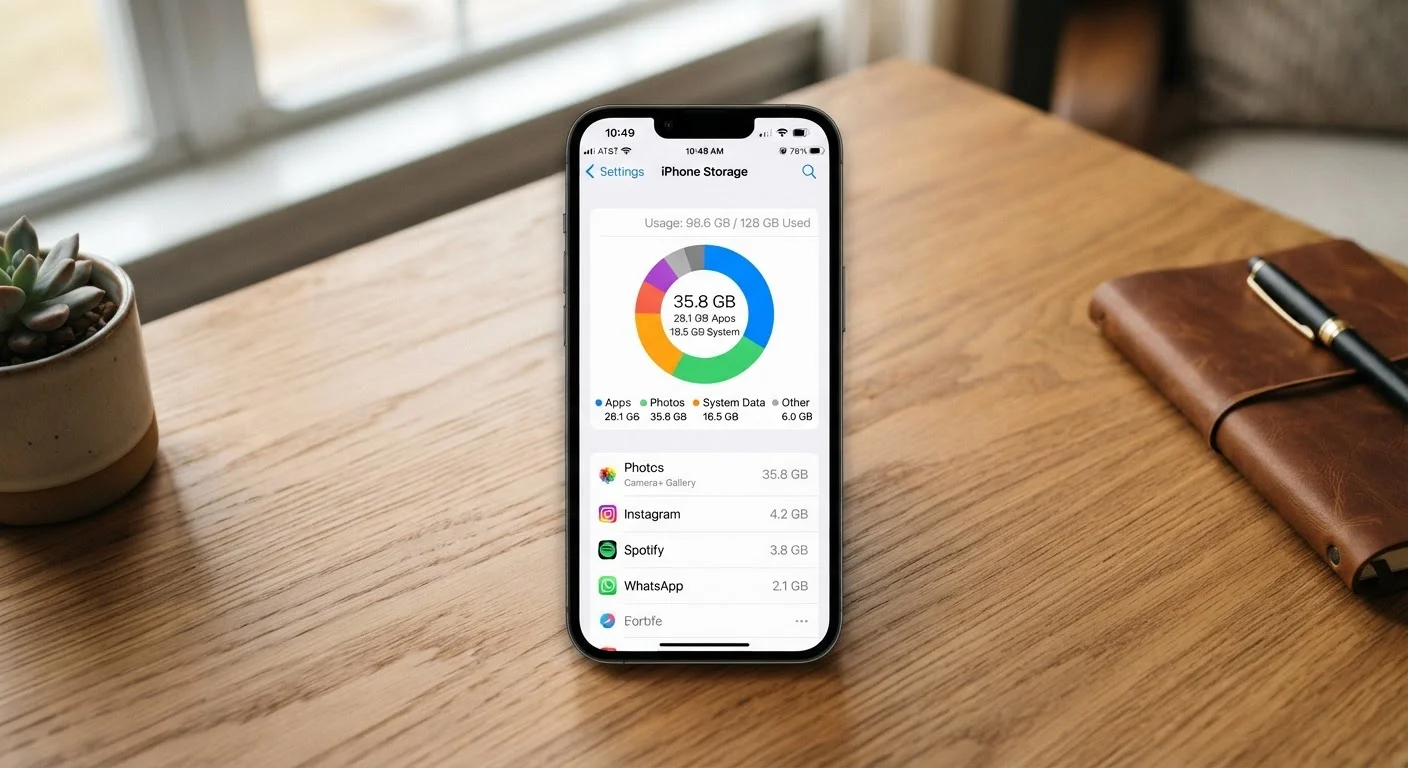
Start by opening your phone's built-in storage tool - it's the most reliable picture of what's happening. On iPhone: Settings > General > iPhone Storage. On Android: Settings > Storage (exact wording varies by manufacturer). Both show a visual breakdown and list apps individually by size.
Work through this order to minimize the risk of deleting something you'll regret:
- Empty the 'Recently Deleted' album in your photo library.
- Delete downloaded content from streaming and podcast apps directly inside those apps.
- Clear cache (not data) on large apps you use frequently.
- Uninstall apps you haven't opened in months - you can always reinstall them later.
- Offload large files like videos to a computer or cloud service before deleting the local copy.
Good storage hygiene also connects to your phone's overall health. See our tips for keeping your smartphone running well for habits that go beyond just clearing space.