

Key Takeaways
The Phone You Already Own Is More Capable Than You Think
Smartphone makers quietly add features with every software update, but the settings menu rarely announces them. As a result, most people use a fraction of what's already on the device in their pocket. None of the tools below require a download, a subscription, or any technical background - just knowing they exist.
Whether you're setting up a new phone or have been using the same device for years, a few minutes spent exploring these built-in features can genuinely change how you use your phone every day.
Emergency SOS Without Unlocking
Both iPhone and Android support an emergency call trigger that doesn't require you to unlock your phone first. On most iPhones, rapidly pressing the side button five times initiates it. On many Android devices, pressing the power button several times quickly does the same.
Once configured, Emergency SOS can automatically dial local emergency services and - critically - send your current location to pre-selected emergency contacts. You can set those contacts in advance under Settings > Emergency SOS (iPhone) or Safety & Emergency (Android). It takes about two minutes to configure and is one of the most genuinely important things you can do with a smartphone.
Emergency SOS can dial for help automatically - even from a locked screen.
Offline Maps That Work Without Signal
Google Maps allows you to download entire regions to your device for use without a data or Wi-Fi connection. In the app, search for a city or region, tap the menu, and look for Download offline map. Apple Maps introduced a similar offline download feature in a recent software update.
This matters more than people expect: tunnels, rural roads, basements, and international travel without a data plan can all leave you without navigation at inconvenient moments. A pre-downloaded map of your home region takes up modest storage space and eliminates that vulnerability entirely.
Downloading your region to Google Maps costs only storage space and solves a real problem.
Live Captions for Any Audio
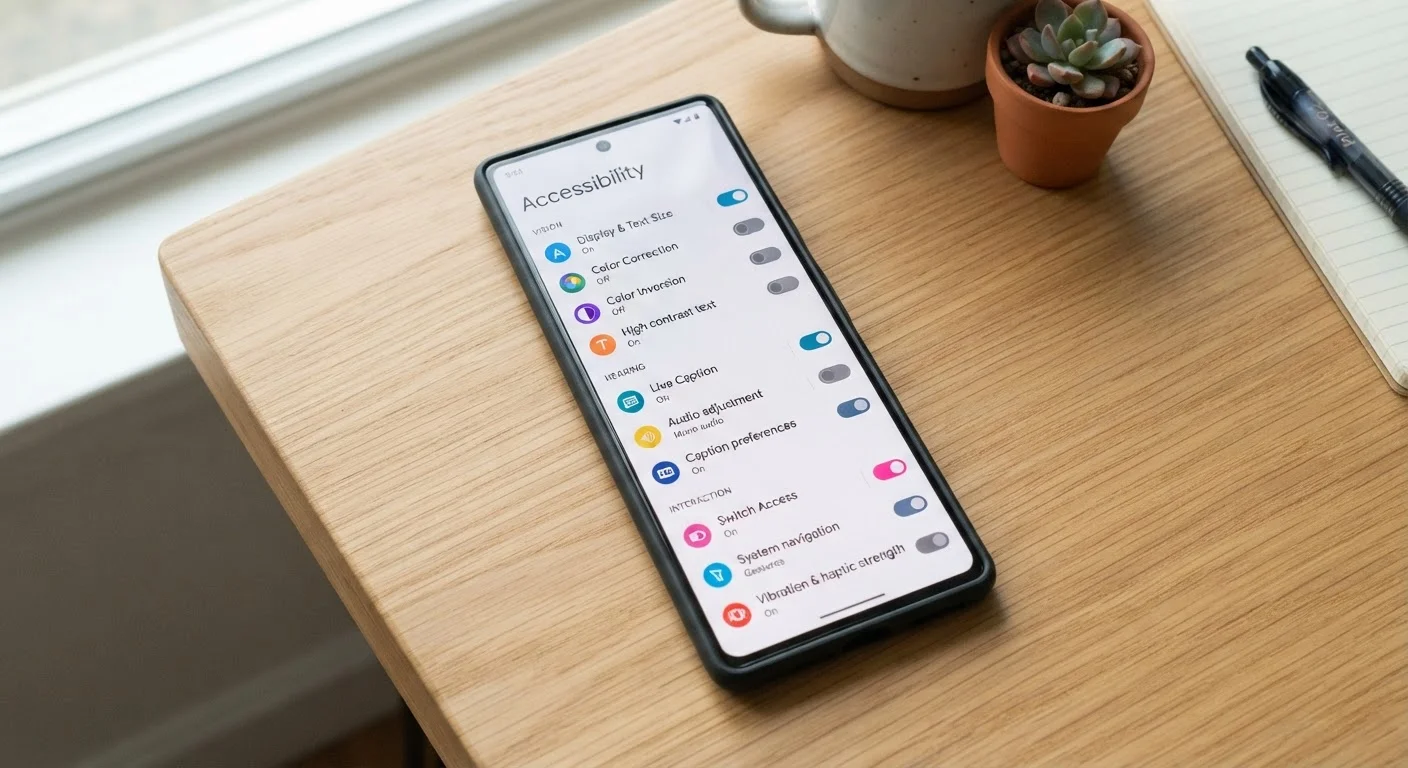
Originally designed as an accessibility feature for people with hearing difficulties, Live Captions generates real-time on-screen text for any audio playing on your device - videos, calls, voice memos, or podcasts. It runs entirely on-device, meaning no audio is sent to the cloud.
It's useful in far more everyday situations than most people realize: watching a video in a noisy environment without headphones, following a phone call in a loud space, or catching dialogue from a video with poor audio mixing. On iPhone, it's under Settings > Accessibility > Live Captions. On Android (Pixel and many others), it's in Settings > Accessibility > Live Caption.
Live Captions transcribes any audio on your device - entirely on-device, with no cloud upload.
The Built-In Document Scanner
Both iOS and Android have document scanning baked in - no third-party app required. On iPhone, open the Notes app, create a new note, tap the camera icon, and select Scan Documents. It automatically detects page edges, corrects perspective, and saves a clean PDF. On Android, Google Drive's app includes an identical scanner accessible from the main screen.
The results are consistently cleaner than many standalone scanning apps because the software is tightly integrated with the camera hardware. Scanned documents can be saved, shared, or signed directly from the same app.
Your phone's native document scanner handles perspective correction automatically and saves to PDF.
Focus Modes and Notification Filters
Both iPhone's Focus mode and Android's Modes and Routines allow you to filter which apps and contacts can send you notifications during specific activities - sleep, work, driving, or any custom label you create. These are not the same as Do Not Disturb: they're far more granular, letting certain people through while silencing everything else.
You can also schedule them to activate automatically at certain times or locations, or when you open a particular app. The setup lives under Settings > Focus on iPhone or Settings > Modes and Routines on Android. If you're curious about the data these settings generate about your usage patterns, our guide to screen time features and what they track is a useful companion read.
Focus modes let specific contacts reach you while silencing everything else - no app needed.
Magnifier as an Instant Accessibility Tool
The Magnifier feature turns your phone's rear camera into a real-time magnifying glass - useful for reading fine print on medication labels, contracts, menus, or appliance manuals. On iPhone, it's accessible via Settings > Accessibility > Magnifier, and once enabled, it can be opened instantly from the Control Center or via a triple-press of the side button.
Android devices have a similar Magnification option under Settings > Accessibility > Magnification. Unlike pinch-zooming a photo, Magnifier works in real time with adjustable brightness and contrast, which makes it practically useful rather than just a workaround.
The Magnifier reads fine print in real time with adjustable brightness - no photo required.
Back Tap and Gesture Shortcuts
iPhone introduced a feature called Back Tap, found under Settings > Accessibility > Touch > Back Tap, that lets a double or triple tap on the back of the phone trigger an action - taking a screenshot, opening the camera, activating the flashlight, or running a Shortcut you've built. It works through the case.
Android offers similar gesture customization through its accessibility settings and, on some devices, through manufacturer-specific tools. These shortcuts reduce the friction of reaching frequently used functions without navigating through the interface, which turns out to be genuinely convenient in daily use.
Back Tap lets a double-tap on the back of your iPhone trigger almost any action you choose.
Start Using What's Already There
None of these features require technical skill to set up. Most are found under Settings, and any option mentioned here applies to either Android or iPhone unless otherwise noted. The specifics of where each setting lives can vary slightly by device model or software version, so a quick search within your settings app using the feature name is the fastest way to find it.
Use Your Settings Search Bar
Every feature listed here can be found faster by typing its name directly into the search bar at the top of your Settings app. This works on both iPhone and Android and saves time when menu layouts vary by device model or software version. It's also the quickest way to confirm whether your specific device supports a feature.
For a deeper look at the controls that protect your data, see our guide to mobile security settings most people never touch. And if you want your device to stay fast and reliable long-term, our article on keeping your smartphone running well year after year covers the habits that actually matter.
Feature Availability Varies by Device and Software
Not every feature described here is available on every phone. Older devices running outdated software, or budget models with stripped-back operating systems, may be missing some options. Keeping your phone's software updated gives you the best chance of having access to the newest built-in tools - a habit that also improves security. For more on why updates matter, see our article on keeping your smartphone running well year after year.