

Key Takeaways
Option A
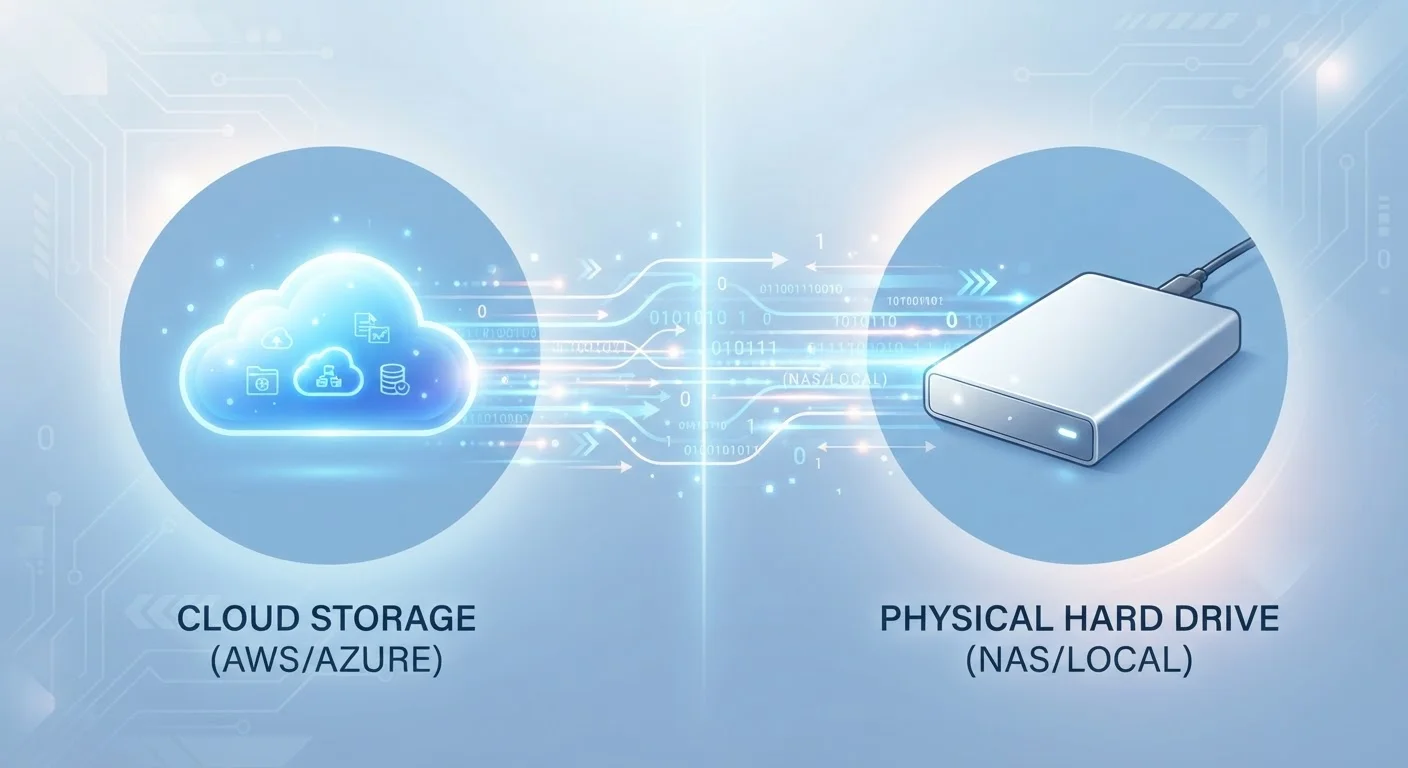
Cloud Storage
The accessible, anywhere-anytime option.
Best for: Users who need files available across multiple devices or want automatic off-site backups.
Option B
Local Storage
The fast, private, no-subscription option.
Best for: Users who work with large files, have limited internet access, or want full control over their data.
If you regularly switch between devices or share files with others
Cloud Storage
Cloud services sync files automatically across phones, tablets, and computers - no cables or manual transfers needed.
If you edit large video, photo, or audio files regularly
Local Storage
Local drives deliver the read/write speeds that large creative files demand, without upload or download bottlenecks.
If you want protection against losing your only copy
Cloud Storage
An off-site copy means a failed or stolen drive won't wipe out irreplaceable files like family photos or tax documents.
If privacy and data ownership are top priorities
Local Storage
Files stored only on your own drive are never transmitted to or processed by a third-party server.
If you want the most resilient, long-term solution
Cloud Storage
A hybrid setup using both local and cloud storage - often called the 3-2-1 backup rule - gives the strongest overall protection.
What Each Option Actually Means
Cloud storage means your files are uploaded to servers managed by a third-party provider and accessed over the internet. When you save a photo to a cloud service or open a document in a browser-based app, the data lives on remote hardware - not your device.
Local storage refers to any drive physically connected to or built into your device: your laptop's internal solid-state drive (SSD), an external hard drive (HDD), or a USB flash drive. Your files stay on hardware you own and control.
Understanding this distinction matters more than most people realize. It affects speed, privacy, cost, and what happens when things go wrong. If you're already thinking about how storage fits into a broader tech setup, our guide to choosing between a laptop and desktop covers how local drive specs should factor into that decision.
| Criterion | Cloud Storage | Local Storage |
|---|---|---|
| Access requirement | Internet connection needed | Works fully offline |
| Transfer speed | Limited by internet speed | Very fast (especially SSD) |
| Cost model | Ongoing subscription for large storage | One-time hardware purchase |
| Multi-device sync | Automatic and seamless | Manual transfer required |
| Off-site backup | Built in by default | Requires separate arrangement |
| Data privacy | Held on third-party servers | Stays on your own hardware |
| Risk of total loss | Low (provider redundancy) | Higher (hardware can fail or be lost) |
Speed, Access, and Everyday Convenience
Local storage wins on raw speed. A modern internal SSD can transfer data at hundreds of megabytes per second - fast enough to open large files almost instantly. Cloud access, by contrast, is capped by your internet connection. Even on a solid broadband plan, uploading or downloading a multi-gigabyte file takes considerably longer than pulling it from a local drive.
Cloud storage, however, wins on convenience across devices. Save a document on your work laptop, and it's on your phone a moment later. That kind of seamless access is genuinely useful for everyday files like notes, presentations, and photos.
~15 GB
Free cloud storage offered by major providers
Several leading cloud platforms offer around 15 GB of free storage, with paid tiers scaling into terabytes.
500+ MB/s
Typical SSD read speed
Consumer-grade SSDs commonly deliver read speeds above 500 MB/s - far faster than any current residential internet connection.
If your phone storage is already feeling the pressure from photos and app data, the breakdown of what fills up phone storage helps clarify which files actually need to live locally versus which can safely move to the cloud.
Privacy, Security, and Who Controls Your Data
With local storage, your files don't leave your possession unless you choose to share them. That makes it the default choice for sensitive documents - financial records, legal files, private photos - where you'd rather not rely on a company's security practices.
Cloud services generally encrypt data in transit and at rest, and reputable providers publish security audits. But your files do reside on infrastructure you don't own, subject to that provider's terms of service, data jurisdiction, and potential vulnerabilities. A breach at a major provider, while rare, could expose stored files.
Cloud Storage Terms of Service Matter
Before relying heavily on any cloud service, it's worth reading the provider's terms around data retention and account termination. If an account is closed - whether by the user or the provider - files may be deleted after a short window. Keeping a local copy of anything truly irreplaceable remains good practice regardless of which cloud service you use.
Vendor lock-in is a related concern worth considering. If a cloud service discontinues a feature, raises prices, or closes entirely, migrating your files can be disruptive. This is the same kind of ecosystem-dependency issue explored in our guide to avoiding smart home ecosystem lock-in.
The Case for Using Both
For most people, the smarter answer isn't either/or - it's a deliberate combination. A widely cited backup principle sometimes called the 3-2-1 rule suggests keeping three copies of important data: two on different local media and one off-site (which cloud storage satisfies neatly).
In practice, this might look like: working files on your computer's internal drive for speed, an external drive for local backups, and cloud sync for easy access and off-site redundancy. Large media libraries stay local; documents and photos sync to the cloud. The split doesn't need to be complicated - it just needs to be intentional.
If you're navigating the same question specifically for your phone, see our comparison of cloud vs. local storage on phones, which covers the unique trade-offs that apply to mobile devices.