

Key Takeaways
Screen Time Features
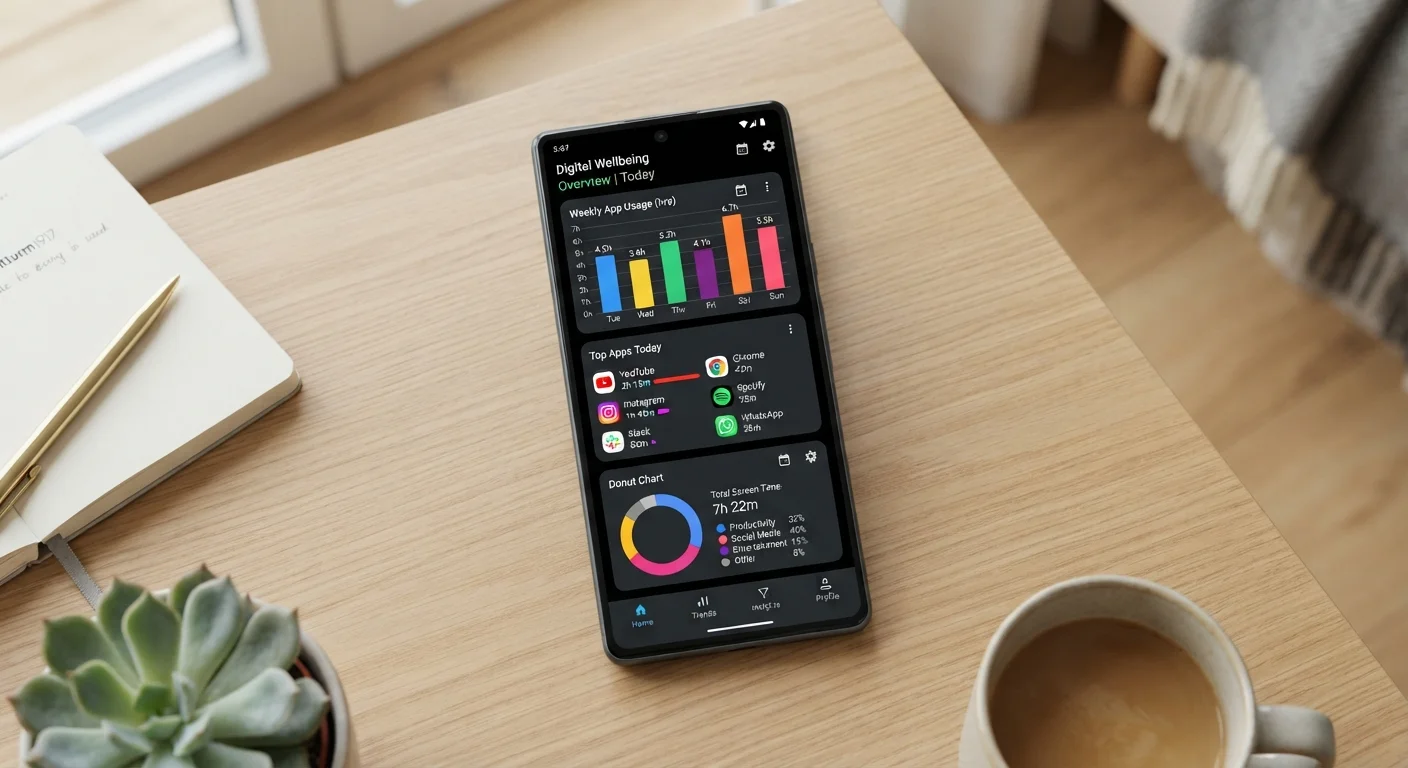
Screen time features are built-in tools on smartphones and tablets that automatically track how long you spend using your device, which apps you open most, and how often you pick up your phone. Both Apple's iOS (called Screen Time) and Google's Android (called Digital Wellbeing) include these dashboards at no extra cost. They also let you set optional limits on app use or schedule device-free periods.
These tools measure active foreground use - time an app is visible on screen - not background processes. Notifications received while a screen is locked are generally not counted as usage time.
What These Dashboards Actually Record
When you open Screen Time on an iPhone or Digital Wellbeing on an Android device, you see a breakdown of the past day or week - but what exactly is being counted?
The core metric is active screen time: the number of minutes an app was open and displayed on your screen while the screen was unlocked. If you opened Instagram for two minutes, closed it, and opened it again later, both sessions count toward that app's total.
Beyond raw time, these tools also track:
- Pickups: How many times you physically lifted or tapped your phone to wake it up.
- Notifications received: A count of alerts delivered by each app.
- Category breakdowns: Time grouped into categories like Social, Entertainment, Productivity, or Health & Fitness.
What they do not track: the specific content you viewed, messages you sent, or websites you visited (beyond time spent in the browser app itself). The data is behavioral, not content-based. For a broader look at how your device handles data more generally, see our article on mobile security settings most people never touch.
Data Stays on Your Device
Screen Time and Digital Wellbeing data is stored locally and, if enabled, synced to your personal Apple or Google account - not shared with app developers or advertisers. This is separate from any data individual apps collect about your in-app behavior, which is governed by each app's own privacy policy.
How to Read the Data Without Overreacting
The number that surprises most people when they first look is total daily screen time. Four hours sounds alarming until you account for context. Did you listen to a podcast through a music app during a commute? Use a GPS navigation app for an hour? Read a long article? All of that counts.
A more useful habit is to look at weekly averages and category breakdowns, not single-day spikes. Ask yourself:
- Which category takes the most time - and does that reflect a real priority or a passive habit?
- How many pickups happened, and when? A pattern of late-night pickups might be more relevant than total time.
- Which apps sent the most notifications? High notification count often drives incidental use.
The pickup count is often the most revealing metric. Checking your phone 80 times in a day suggests a different pattern than spending three hours on a single app intentionally. Neither is automatically bad - but knowing which you're doing helps you make a deliberate choice.
Focus on Pickup Count First
Before adjusting any app limits, spend one week just observing your pickup count and notification totals. Reducing notifications from high-volume apps often cuts automatic phone-checking more effectively than time limits do - and requires no willpower to maintain.
Setting Limits: What Works and What Doesn't
Both platforms let you set daily time limits on individual apps or entire categories. When the limit is reached, you see a notification and a soft block screen. On iOS especially, bypassing it takes one tap - so these limits work best as gentle reminders rather than hard controls for adults.
More effective than app limits for many people is the Downtime (iOS) or Bedtime mode (Android) feature, which grays out most apps during scheduled hours. This creates a default environment rather than relying on willpower in the moment.
A few practical approaches worth considering:
- Set a weekly review habit rather than daily limits - check the dashboard once a week and notice trends rather than reacting to each day.
- Use notification management alongside screen time - reducing notifications often reduces pickups more effectively than time limits alone.
- If you're setting limits for children, both platforms offer separate parental controls that require a passcode to modify. These are more robust than adult self-limits and require deliberate setup.
For context on how your phone's other built-in tools compare, the article on features built into your phone that most people discover too late covers several that go similarly underused. The experience also differs meaningfully between platforms - Android vs. iOS in daily use explains where these two implementations diverge most.
~4 hrs
Average daily smartphone use among U.S. adults
Industry analysts tracking mobile behavior have consistently reported average U.S. adult smartphone use in the three-to-five hour range, varying by age group and methodology.
80+
Average daily phone pickups per user
Multiple device usage studies have found users pick up their phones more than 80 times per day on average, often for brief check-ins of under a minute.
~40%
Share of screen time attributed to social and entertainment apps
App analytics firms have found that social media and entertainment categories typically account for the largest share of tracked screen time across both platforms.
Using the Data as a Starting Point, Not a Verdict
Screen time dashboards are measurement tools, not scorecards. Two people with the same daily total could have entirely different relationships with their phones - one using it for focused work and navigation, another caught in an automatic scroll loop they didn't intend.
The most practical mindset is to treat screen time data the way you might treat a spending summary in a budgeting tool. (For a sense of how that kind of tracking works, see our piece on spreadsheet vs. budgeting app approaches.) The number itself doesn't tell you what to do - it tells you where to look. From there, you decide what, if anything, to change.
Screen time features are most useful when used occasionally and honestly, rather than monitored daily with anxiety. Check in, notice patterns, adjust if something doesn't match your intentions, and move on. That's the straightforward purpose these tools were designed for.